How-to
YouTube comments held for review: what it means and what to do
Held for review on YouTube, from a real channel: what Basic and Strict hold, where held comments sit, the 60-day deadline, what the four buttons do.
17 October 2026 · 16 min read
Blog · How-to
Studio's new AI search, the exact-match trick, a free export to a spreadsheet, and the API. What searching 964 real comments on my channel found, with numbers.
By Rahul Wagh·· 16 min read
There are four ways to search your own YouTube comments, and which one you want depends on what you are looking for. For one comment you remember, use YouTube Studio's Search chip with an exact phrase. For "all the comments about X", Studio's new describe-what-you-want search works, with a caveat it prints itself: "quality and accuracy may vary." For anything you want to count, sort or keep, export the comments to a spreadsheet; our free exporter does a video at a time with no sign-in. And for a whole channel at once, you need a tool that reads the YouTube Data API with your permission, which is what I built.
I run a 104,000-subscriber tutorial channel. On 18 October 2026 I exported the newest 200 comments and their replies from each of my five most popular videos, 964 viewer comments in all, and searched them the way I would search for anything useful: errors, questions, requests, links, people asking about the course. The counts are below, because "search your comments" is only worth doing if you know what is in there, and most creators do not. Then each of the four methods, step by step, with what each one cannot do.
The export covers my AWS VPC, EC2 course, IAM, Helm and Ansible videos, newest 200 top-level comments each plus replies, viewers only (my own replies removed). Searching it on 18 October 2026:
| Search | Matches | Share | What it finds |
|---|---|---|---|
| "thank" | 312 | 32% | Thank-yous. The biggest category by far. |
| A question mark | 171 | 18% | Questions, including the ones hidden inside praise. |
| "how do", "how to", "how can" | 47 | 5% | The how-to questions worth a video. |
| "course", "Udemy", "buy", "price" | 33 | 3% | People asking about the paid course. |
| "please make", "next video", "tutorial on" | 29 | 3% | Explicit requests. |
| "Sundar" or "Pichai" | 26 | 3% | The lookalike joke. One in thirty comments. |
| "error" | 23 | 2% | Something broke and they pasted it. |
| "link", "GitHub", "repo" | 23 | 2% | People asking for the code. |
| "version", "Terraform 1.", a year | 12 | 1% | "Does this still work in 2026" questions. |
| "why" | 10 | 1% | Conceptual questions. |
| "first", "who is watching" | 9 | 1% | Noise. |
| "permission", "denied" | 7 | 1% | IAM problems specifically. |
Two things I did not expect. The course questions (33) outnumber the error reports (23); a tutorial channel's comments are a sales channel whether or not you treat them as one. And the most common single word after my own name is "private" (78 times), then "subnet" (64) and "public" (63): the VPC video's viewers are stuck on one concept, and a search told me that in a second.
The point of the table is the method. Every row is a search you can run on your own comments in under a minute with method 3 below, and every row tells you something to make, fix or answer.
In YouTube Studio, open Community, then Comments. In the row of filter chips there is one labelled Search with a small sparkle icon. In 2026 it opens a dialog rather than a plain box.
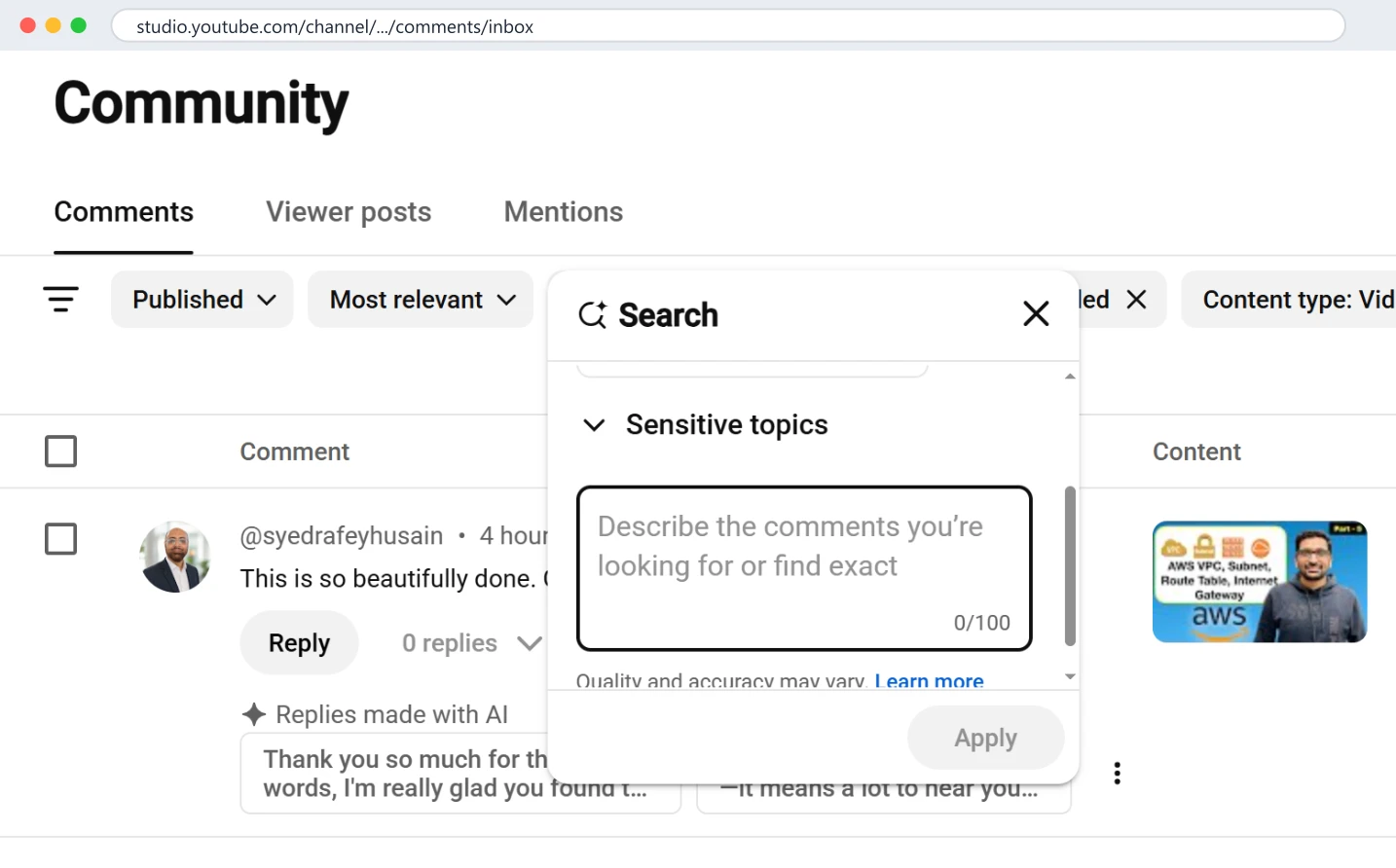
Three things live in that dialog:
For finding one comment you remember, use exact. Type the most unusual three or four words you recall from it, apply, and switch the sort to Newest if you know roughly when it was. Two limits: the search applies on top of whatever other chips are active, so clear Response status and Content type first or you will search a subset without noticing; and it searches published comments only. A comment the viewer swears they left, which you cannot find by exact phrase, is usually in the Held view, which has its own post: YouTube comments held for review.
One more limit that matters for a long-running channel: the search runs over a comment list that, on my channel, goes back years, so broad terms return a lot. In the export, the word "error" appears 40 times; "ls -lart" appears once, in a reply of mine. Search for the rare phrase, not the common word.
The description box is the new part and it is useful for exactly one job: pulling a category out of a long list without knowing the words in advance. "Comments that ask for the GitHub link" finds "repo?", "code pls", "where is the source" and "github link not in description" in one pass, which no exact search would.
Studio's own warning is the right one. A described search is a model's guess at a category, and a model is good at the obvious phrasing and weaker at the oblique: "do you have a promo code" is plainly about pricing, "is this free" contains no pricing word at all, and you cannot see which of the two it skipped, which is the problem with every search that does not show you the misses. In the export, the 33 course-related comments took four different exact searches to collect ("course", "Udemy", "buy", "price"), which is the kind of thing a described search is for, as long as you check it.
So the rule I use: describe-it search to find the first ten of a category fast, exact search to check the words I now know people use, and an export (method 3) when the answer needs to be complete.
What the describe-it search cannot do: count. It shows you matches; it does not tell you "33 comments mention the course". It cannot run across community posts (the Viewer posts tab has no equivalent). It cannot be saved as a report, and an applied search persists as a chip, so a search you ran on Tuesday is still filtering your list on Friday unless you remove it, which I covered in YouTube Studio comments not showing.
This is how I made the table above, and it is the method I would teach first, because it turns comments from a feed into data.
Step by step, with the free tool:
=COUNTIF(F:F, "*error*") counts comments containing "error"; =COUNTIF(F:F, "*?*") counts question marks. Those two formulas produced two rows of the table above.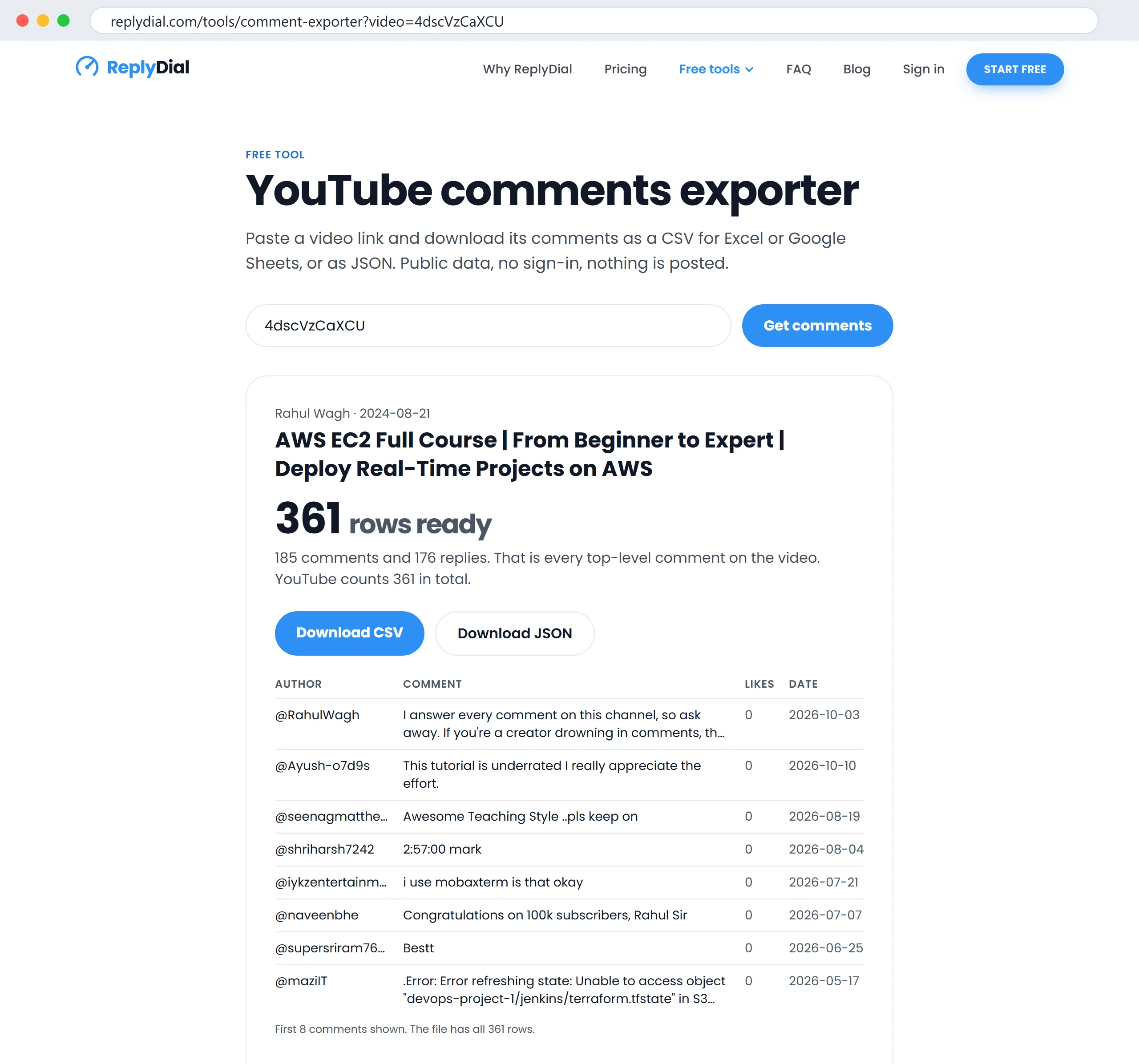
Limits of the export, honestly: 200 top-level comments per video is a window, not everything; the AWS VPC video has 354 comments and the export has the newest 200 of them. Replies are capped at five per thread by what YouTube's public API returns. It sees published comments only, never held or spam-filtered ones. And it is one video at a time, with a shared daily limit, so a 300-video back catalogue is not a Sunday-afternoon job with this tool.
For your whole channel in one file, sign in to ReplyDial and use Export CSV from the inbox: the free plan exports the newest page, paid plans export everything, including every reply, because a signed-in read can page through the whole channel.
Once the CSV is open, these five formulas, in Google Sheets or Excel, answer the questions I actually have. Column F is the comment text in the exporter's CSV, column D the author, column G the likes, column I the date.
| What you want | Formula | What it returned on my EC2 course export |
|---|---|---|
| How many comments mention an error | =COUNTIF(F:F,"*error*") |
23 across the five videos; 4 on the EC2 course alone |
| How many are questions | =COUNTIF(F:F,"*?*") |
171 across five videos |
| How many are thank-yous | =COUNTIF(F:F,"*thank*") |
312 |
| Your own replies on this video | Filter column D to your handle | 360 rows on the EC2 course, 141 of them mine |
| The most-liked viewer comments | Sort by G, descending, with your handle filtered out | A complaint, then a thank-you, then a request |
The COUNTIF with asterisks is a substring match, so "thank" catches "thanks", "thank you" and "thankyou". It is case-insensitive in both Sheets and Excel. For a word-boundary match ("error" but not "errors") you need a regular expression, which Sheets has (=COUNTA(FILTER(F:F, REGEXMATCH(F:F, "\\berror\\b")))) and Excel does not without a plug-in; for most comment searches the substring is what you want anyway.
Two formulas I use less often but keep: =SUMIF(F:F,"*link*",G:G) adds up the likes on every comment asking for a link, which tells you how many people silently wanted the same thing (on the VPC video: 15 likes across the 10 viewer comments that mention NAT), and =COUNTIFS(F:F,"*?*",I:I,">2026-01-01") counts questions since a date, which is how I know whether a video is still generating questions or has gone quiet.
The CSV has a type column (comment or reply) and a parent_id column. Filter type to "reply" and the author to anyone but you, and you are looking at viewers replying inside threads, which is where the follow-up questions live and where Studio's filters are blind. On my five videos that is 132 viewer replies out of the 964 viewer rows, roughly one in seven, and a number of them are a second question under a thread I had already answered once. I explained why those go missing in why you miss YouTube comments; the export is the only one of the four methods that puts them in a column you can sort.
If you or someone near you can run a script, the YouTube Data API does the whole channel. Two calls matter.
To read comment threads on one video, with an API key and no sign-in:
GET https://www.googleapis.com/youtube/v3/commentThreads
    ?part=snippet,replies&videoId=VIDEO_ID&maxResults=100&key=API_KEY
That is 1 quota unit per page of 100 threads, and paging through a video with 354 comments costs 4 units. To read every thread on your own channel in one stream, sign in as the owner and use allThreadsRelatedToChannelId instead of a video id; it is the single most useful parameter in the comments API and the reason a whole-channel inbox is cheap to build. I described the quota budget in YouTube API quota for creators: reading is nearly free, posting costs 50 a time.
The text search is then yours: a regular expression over the textDisplay field, a word frequency count, a classifier if you want one. The open-source toolkit I published, youtube-comment-tools on GitHub, has the read-only pieces: unanswered to count comments with no channel reply, export to dump a video to CSV or JSON, and quota to estimate cost. It deliberately contains no posting code.
What the API cannot do: read comments on community posts (there is no endpoint), see held or likely-spam comments unless the owner is signed in and asks for them by status, or search server-side. There is no "search comments" call; you download and search locally, which is why method 3 and method 4 are the same idea at two sizes.
| You want to... | Use | Time |
|---|---|---|
| Find one comment you remember | Studio Search, exact phrase | 1 minute |
| Pull a rough category ("asking for the link") | Studio describe-it search | 2 minutes, then check the misses |
| Count anything, or keep a record | Export one video to CSV | 5 minutes per video |
| See every reply you ever wrote on a video | Export, filter author to you | 5 minutes |
| Search the whole channel, or repeat weekly | API, or a signed-in whole-channel export | An afternoon once, then minutes |
| Find comments on community posts | Studio, Viewer posts tab, by eye | Varies; nothing else can |
| Find a held comment | Studio, Held view, two clicks | 1 minute |
This is what I do once a month with the methods above, in this order, and roughly what each step takes. It replaced a vague intention to "look through the comments sometime" that never happened.
| Step | Method | Minutes | What it produces |
|---|---|---|---|
| Export the three most-viewed videos | Exporter, three downloads | 3 | Three CSVs, about 600 rows |
| Count "?", "error", "link", "course" | COUNTIF | 2 | Four numbers per video, tracked month to month |
| Sort viewers' comments by likes | Sort | 2 | The five comments to answer or pin this month |
| Filter replies by viewers, newest first | Filter | 3 | Follow-up questions nobody saw |
| Run "describe" searches for two categories | Studio Search | 3 | Anything the keyword counts missed |
| Write down the one repeated word | Reading | 2 | The next video or the pinned FAQ |
The numbers tracked month to month are the useful part. "Error" dropping on a video after you pin a fix is a result you can see. "Course" climbing after a sale is a result you should act on. A comment section is a slow conversation with hundreds of people, and the only way to hear it as a whole is to count it occasionally.
Searching is only worth the five minutes if you act on it, so here is what the searches above did on my channel.
Yes; the Community page lists comments from the whole channel, and the Search chip searches that list. Clear the other chips first, because they narrow what is searched. It does not cover community posts, which have their own tab.
In an export, filter the author column, which is exact and includes the author's channel id, so two viewers with similar names do not get mixed up. I have not found Studio's search reliable for author names, so I use the export for this. Hiding or approving a user is in Settings, Community.
Paste the video link into the comment exporter, download the CSV, and open it in Excel. It is UTF-8 with a byte-order mark, so names in Hindi, Arabic or Japanese display correctly, and anything that starts with a formula character is escaped so a comment cannot run as a formula.
No. A comment the viewer deletes is gone from Studio, from the API and from any later export. An export you took earlier still has it, which is one reason to export the videos that matter once a quarter.
Yes. Shorts comments are ordinary comments on an ordinary video id; the exporter and the API treat them identically, and Studio's Content type chip includes them unless you narrowed it.
Four usual reasons: a filter chip or a saved Search is narrowing the list; the comment was a reply inside a thread and you are looking at top-level comments; the viewer deleted or edited it (an edit can move it to Held if it gained a link); or it was on a community post and lives under Viewer posts. I listed all of them, with fixes, in YouTube Studio comments not showing.
Not in Studio. The closest built-in tool is the blocked words list in Settings, Community, which holds matching comments for review rather than alerting you; some creators put their product name on it for exactly that reason, so every mention waits in the Held view. A tool reading the API with your permission can do real keyword alerts; that is on my list for ReplyDial and not built yet.
What to do this week, no tool needed: open Studio, Community, clear every chip, and run three exact searches: "error", "link", and "?". Count what comes back, answer the top five by likes, and write down the one word that keeps appearing. That word is your next video.
ReplyDial reads every comment across your channel with your permission, shows the unanswered ones in one inbox, and lets you export all of them, replies included, to a CSV; the free comment exporter does one video at a time with no sign-in, which is enough to run every search in this post.
ReplyDial lists every comment on your channel still waiting for a reply, drafts answers in your voice, and posts only what you approve. Free for 7 days on Creator limits, no card.
7 days on Creator limits, no card. Nothing is posted without your click. See the privacy policy.
How-to
Held for review on YouTube, from a real channel: what Basic and Strict hold, where held comments sit, the 60-day deadline, what the four buttons do.
17 October 2026 · 16 min read
How-to
YouTube's own FAQ lists what its recommendations watch, and comments are not on it. What that means, what comments do instead, and what 629 replies show.
17 October 2026 · 16 min read
How-to
Comments missing in YouTube Studio? Eleven causes checked on a real 104k channel in October 2026: held status, filters, sort, Viewer posts, Search, settings.
14 October 2026 · 16 min read